[quote]"mairo":/users/38571 said:
I do know how to make GIFs not poopy, that's literally one aspect I have been doing here for last decade. Problem is there's so many variables that I can't just explain how to do it, as it depends also of your software and workflow.
First step is not to make MP4 files. MP4 is end video format, not lossless, intermediary or editing format. You are compressing the visuals, then converting it into GIF, that's lossless fileformat, so now all the compression artifacts become huge issue, both visuals and filesize and now you need to reduce amount of colors so those invisible to human eye artifacts are even bigger issue.
Always use PNG image sequence as intermediary format!
Only post MP4 on sites which convert your uploads to video regardless, basically 𝕏, Bsky and Telegram as they do not support GIFs and convert all of them into h264 MP4 regardless, 𝕏 just adds "gif" label if the source upload was GIF. (added direct link into sources if you wanna see it)
I use FFmpeg for everything and this blog post has been godsend to read, main things to consider are palette generation and dither method used. So far the best approach I have found is to try without dithering, if there is excessive banding artifacts, try bayer 5 and 4 as these have minimal impact on content and gives slight dither on gradient areas, then work from there.
https://blog.pkh.me/p/21-high-quality-gif-with-ffmpeg.html
With this specific artwork, do not upscale it. It's currently 3x nearest neighbor it seems, so reducing it to 2x also significantly reduces problems. GIFs were made in 90's so the expected resolution for these were hundred or so pixels in dimensions, not thousands.
I just insist everyone, use APNG or lossless WebP. One benefit of this would be that if GIF version is wanted, APNG is proper lossless source to work from and it's extremely easy to make GIF out of it in 5 seconds and there's no need to figure out palettes, dithers, optimization, etc. for original author.
[/quote]
Huge props for this, ill do some deep dive research on aseprite end and read the blog. again huge thanks bc this has been bugging me for 2 years
[quote]"saskatoon_nu":/users/1611473 said:
I'm aware of the 256 color limit and spent like 2 hours trying to get it to not look like that but gave up. The video version comes out amazing, just like the static image, but since I wanted a gif, that's the best quality I could get. I'll stick with doing mp4 version but if you know a way to make the gifs not look poopy, I'm all ears.
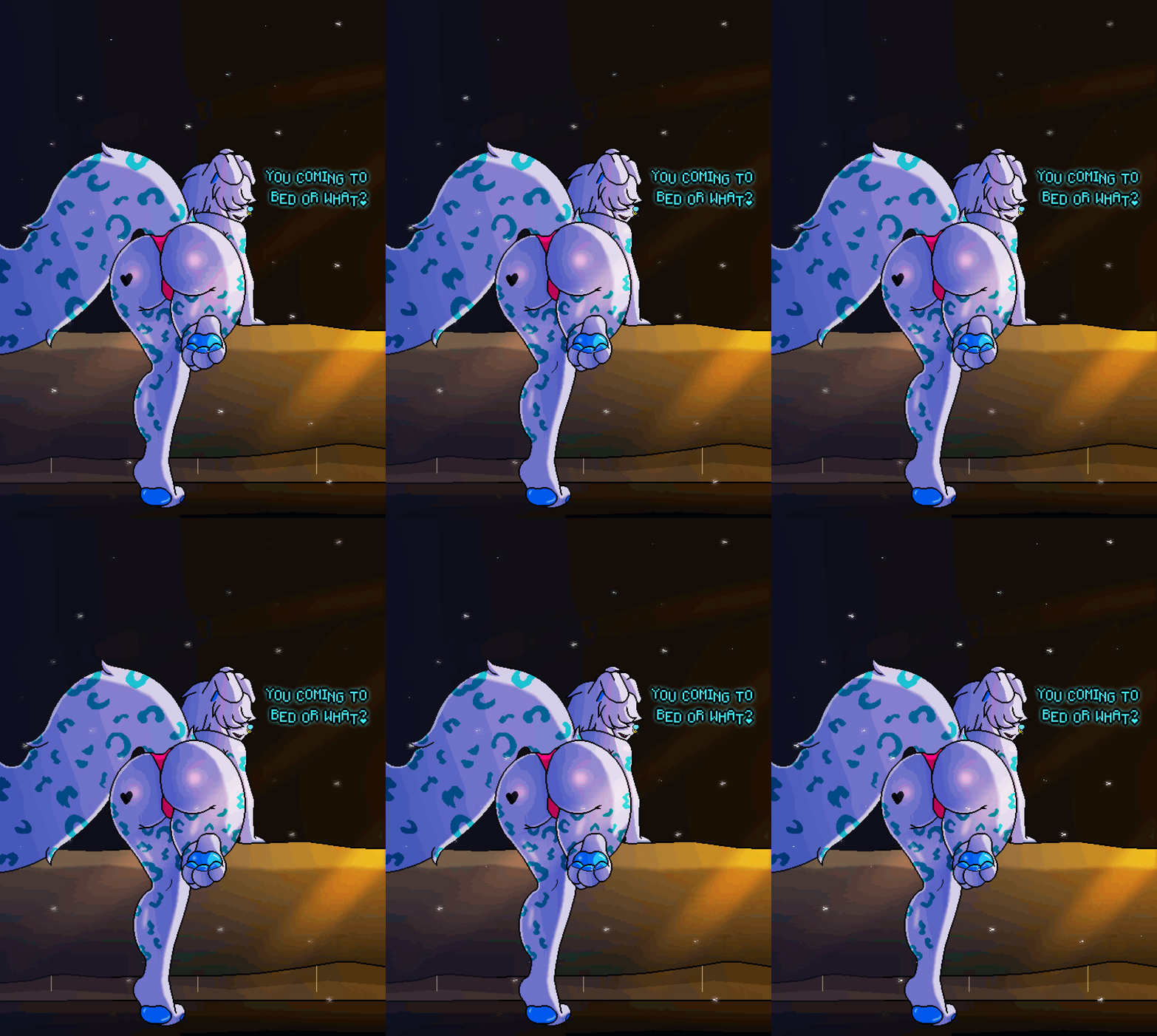
Im trying to get the animated lighting and colors down like how @Aduare does on X but the gifs colors always comes out muddy like in the image.
[/quote]
I do know how to make GIFs not poopy, that's literally one aspect I have been doing here for last decade. Problem is there's so many variables that I can't just explain how to do it, as it depends also of your software and workflow.
First step is not to make MP4 files. MP4 is end video format, not lossless, intermediary or editing format. You are compressing the visuals, then converting it into GIF, that's lossless fileformat, so now all the compression artifacts become huge issue, both visuals and filesize and now you need to reduce amount of colors so those invisible to human eye artifacts are even bigger issue.
Always use PNG image sequence as intermediary format!
Only post MP4 on sites which convert your uploads to video regardless, basically 𝕏, Bsky and Telegram as they do not support GIFs and convert all of them into h264 MP4 regardless, 𝕏 just adds "gif" label if the source upload was GIF. (added direct link into sources if you wanna see it)
I use FFmpeg for everything and this blog post has been godsend to read, main things to consider are palette generation and dither method used. So far the best approach I have found is to try without dithering, if there is excessive banding artifacts, try bayer 5 and 4 as these have minimal impact on content and gives slight dither on gradient areas, then work from there.
https://blog.pkh.me/p/21-high-quality-gif-with-ffmpeg.html
With this specific artwork, do not upscale it. It's currently 3x nearest neighbor it seems, so reducing it to 2x also significantly reduces problems. GIFs were made in 90's so the expected resolution for these were hundred or so pixels in dimensions, not thousands.
I just insist everyone, use APNG or lossless WebP. One benefit of this would be that if GIF version is wanted, APNG is proper lossless source to work from and it's extremely easy to make GIF out of it in 5 seconds and there's no need to figure out palettes, dithers, optimization, etc. for original author.
[quote]"mairo":/users/38571 said:
The artwork is aliased, so some color banding would be fitting to the style, however, the banding is clearly moving really shakily and changing shape in really unnatural way and dark areas the colors go from really dark to really bright. Makes it almost seem like the aim was to have more of like more natural gradients and lights, but then it was maybe video (you can see in one frame especially on butt, the banding just kinda spazzes out and becomes much larger, which is usually indication of video compression) that was converted into GIF and there was no dither applied during reducing colors to 256 and then it just looks like this now.
Do you still have the original animation frames stored, either source files or PNG image sequence and maybe try making APNG or WebP out of those? Because I feel like this is not how it's supposed to look.
[/quote]
I'm aware of the 256 color limit and spent like 2 hours trying to get it to not look like that but gave up. The video version comes out amazing, just like the static image, but since I wanted a gif, that's the best quality I could get. I'll stick with doing mp4 version but if you know a way to make the gifs not look poopy, I'm all ears.
Im trying to get the animated lighting and colors down like how @Aduare does on X but the gifs colors always comes out muddy like in the image.
The artwork is aliased, so some color banding would be fitting to the style, however, the banding is clearly moving really shakily and changing shape in really unnatural way and dark areas the colors go from really dark to really bright. Makes it almost seem like the aim was to have more of like more natural gradients and lights, but then it was maybe video (you can see in one frame especially on butt, the banding just kinda spazzes out and becomes much larger, which is usually indication of video compression) that was converted into GIF and there was no dither applied during reducing colors to 256 and then it just looks like this now.
Do you still have the original animation frames stored, either source files or PNG image sequence and maybe try making APNG or WebP out of those? Because I feel like this is not how it's supposed to look.
Comments
No comments yet.
Log in to comment.
e621.net · 5998975
[quote]"mairo":/users/38571 said: I do know how to make GIFs not poopy, that's literally one aspect I have been doing here for last decade. Problem is there's so many variables that I can't just explain how to do it, as it depends also of your software and workflow. First step is not to make MP4 files. MP4 is end video format, not lossless, intermediary or editing format. You are compressing the visuals, then converting it into GIF, that's lossless fileformat, so now all the compression artifacts become huge issue, both visuals and filesize and now you need to reduce amount of colors so those invisible to human eye artifacts are even bigger issue. Always use PNG image sequence as intermediary format! Only post MP4 on sites which convert your uploads to video regardless, basically 𝕏, Bsky and Telegram as they do not support GIFs and convert all of them into h264 MP4 regardless, 𝕏 just adds "gif" label if the source upload was GIF. (added direct link into sources if you wanna see it) I use FFmpeg for everything and this blog post has been godsend to read, main things to consider are palette generation and dither method used. So far the best approach I have found is to try without dithering, if there is excessive banding artifacts, try bayer 5 and 4 as these have minimal impact on content and gives slight dither on gradient areas, then work from there. https://blog.pkh.me/p/21-high-quality-gif-with-ffmpeg.html With this specific artwork, do not upscale it. It's currently 3x nearest neighbor it seems, so reducing it to 2x also significantly reduces problems. GIFs were made in 90's so the expected resolution for these were hundred or so pixels in dimensions, not thousands. I just insist everyone, use APNG or lossless WebP. One benefit of this would be that if GIF version is wanted, APNG is proper lossless source to work from and it's extremely easy to make GIF out of it in 5 seconds and there's no need to figure out palettes, dithers, optimization, etc. for original author. [/quote] Huge props for this, ill do some deep dive research on aseprite end and read the blog. again huge thanks bc this has been bugging me for 2 years
[quote]"saskatoon_nu":/users/1611473 said: I'm aware of the 256 color limit and spent like 2 hours trying to get it to not look like that but gave up. The video version comes out amazing, just like the static image, but since I wanted a gif, that's the best quality I could get. I'll stick with doing mp4 version but if you know a way to make the gifs not look poopy, I'm all ears. Im trying to get the animated lighting and colors down like how @Aduare does on X but the gifs colors always comes out muddy like in the image. [/quote] I do know how to make GIFs not poopy, that's literally one aspect I have been doing here for last decade. Problem is there's so many variables that I can't just explain how to do it, as it depends also of your software and workflow. First step is not to make MP4 files. MP4 is end video format, not lossless, intermediary or editing format. You are compressing the visuals, then converting it into GIF, that's lossless fileformat, so now all the compression artifacts become huge issue, both visuals and filesize and now you need to reduce amount of colors so those invisible to human eye artifacts are even bigger issue. Always use PNG image sequence as intermediary format! Only post MP4 on sites which convert your uploads to video regardless, basically 𝕏, Bsky and Telegram as they do not support GIFs and convert all of them into h264 MP4 regardless, 𝕏 just adds "gif" label if the source upload was GIF. (added direct link into sources if you wanna see it) I use FFmpeg for everything and this blog post has been godsend to read, main things to consider are palette generation and dither method used. So far the best approach I have found is to try without dithering, if there is excessive banding artifacts, try bayer 5 and 4 as these have minimal impact on content and gives slight dither on gradient areas, then work from there. https://blog.pkh.me/p/21-high-quality-gif-with-ffmpeg.html With this specific artwork, do not upscale it. It's currently 3x nearest neighbor it seems, so reducing it to 2x also significantly reduces problems. GIFs were made in 90's so the expected resolution for these were hundred or so pixels in dimensions, not thousands. I just insist everyone, use APNG or lossless WebP. One benefit of this would be that if GIF version is wanted, APNG is proper lossless source to work from and it's extremely easy to make GIF out of it in 5 seconds and there's no need to figure out palettes, dithers, optimization, etc. for original author.
[quote]"mairo":/users/38571 said: The artwork is aliased, so some color banding would be fitting to the style, however, the banding is clearly moving really shakily and changing shape in really unnatural way and dark areas the colors go from really dark to really bright. Makes it almost seem like the aim was to have more of like more natural gradients and lights, but then it was maybe video (you can see in one frame especially on butt, the banding just kinda spazzes out and becomes much larger, which is usually indication of video compression) that was converted into GIF and there was no dither applied during reducing colors to 256 and then it just looks like this now. Do you still have the original animation frames stored, either source files or PNG image sequence and maybe try making APNG or WebP out of those? Because I feel like this is not how it's supposed to look. [/quote] I'm aware of the 256 color limit and spent like 2 hours trying to get it to not look like that but gave up. The video version comes out amazing, just like the static image, but since I wanted a gif, that's the best quality I could get. I'll stick with doing mp4 version but if you know a way to make the gifs not look poopy, I'm all ears. Im trying to get the animated lighting and colors down like how @Aduare does on X but the gifs colors always comes out muddy like in the image.
The artwork is aliased, so some color banding would be fitting to the style, however, the banding is clearly moving really shakily and changing shape in really unnatural way and dark areas the colors go from really dark to really bright. Makes it almost seem like the aim was to have more of like more natural gradients and lights, but then it was maybe video (you can see in one frame especially on butt, the banding just kinda spazzes out and becomes much larger, which is usually indication of video compression) that was converted into GIF and there was no dither applied during reducing colors to 256 and then it just looks like this now. Do you still have the original animation frames stored, either source files or PNG image sequence and maybe try making APNG or WebP out of those? Because I feel like this is not how it's supposed to look.